Presets Tab
Contents
Overview
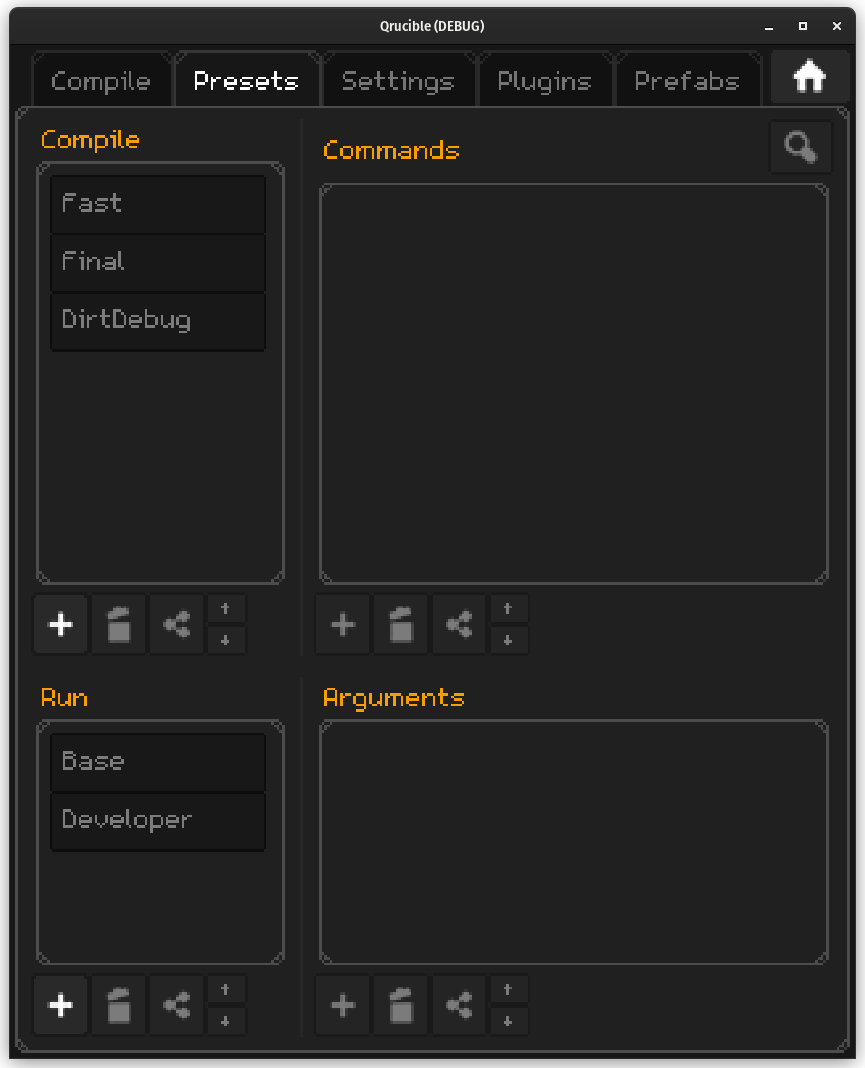
This tab is where you define all of your compiling and running presets.
Presets sound complicated but they are really just a group of commands you want to run against your MAP file to produce a working map.
If this is a new install of Qrucible, the names you see on the left side are presets that were created for you to get you started. Modify or delete them as you wish.
General Editing
All 4 sections of this window have a set of buttons below their lists. These all work the same, so this explanation covers them all.
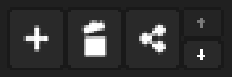
- ADD - Adds a new item to the list
- DELETE - Deletes the currently selected item
- DUPLICATE - Makes a copy of the currently selected item
- UP/DOWN - Allows you to change the order of items. This matters for things like Commands where maybe you need certain tools to run ahead of other ones.
Double Clicking an item will allow you to edit it. This works in all 4 sections as well.
Compile Presets
Houses the presets that contain the compiling commands. If you select one from the left side, the commands that are inside of it will appear to the right.
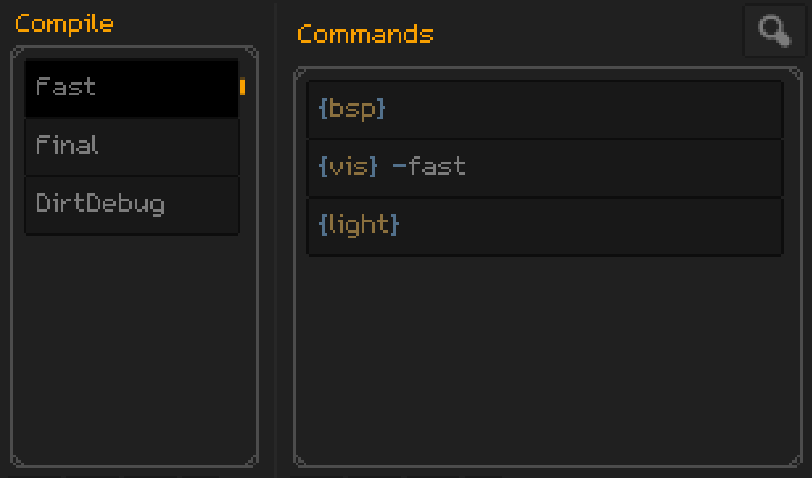
bsp, vis and light refer to the compiling tools you have set up on the Settings tab.
So in this example, if you compile with the preset Fast, Qrucible will run each command inside of it, in turn. At the end, you will have a compiled BSP file that will be automatically copied into the mod folder you have selected on the Compile tab.
Editing Commands
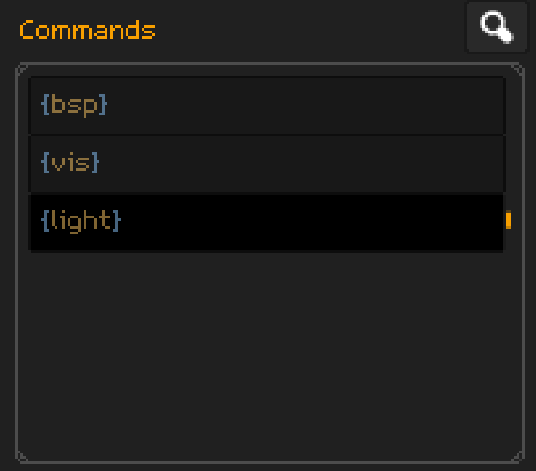
When entering new commands, the format is the same : {tool} command-line-args
The commands have syntax coloring enabled so they should be fairly easy to read.
Let's enter some arguments for light:
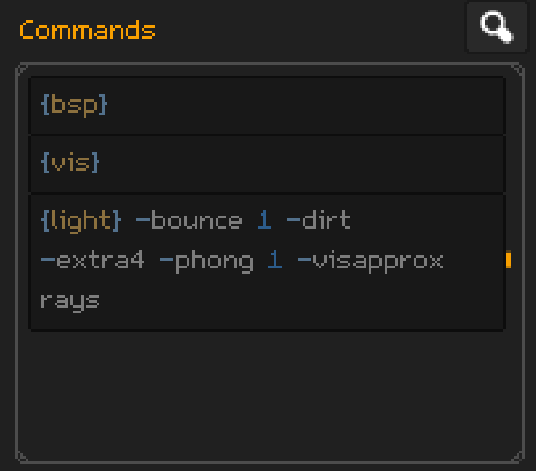
So now when the light tool runs, everything after {light} will be passed to that tool for processing.
You could type all of that in manually from memory or by googling up the arguments on the internet, but there's a better way. Click the magnifying glass in the top right to open a search window.
Argument Search Window
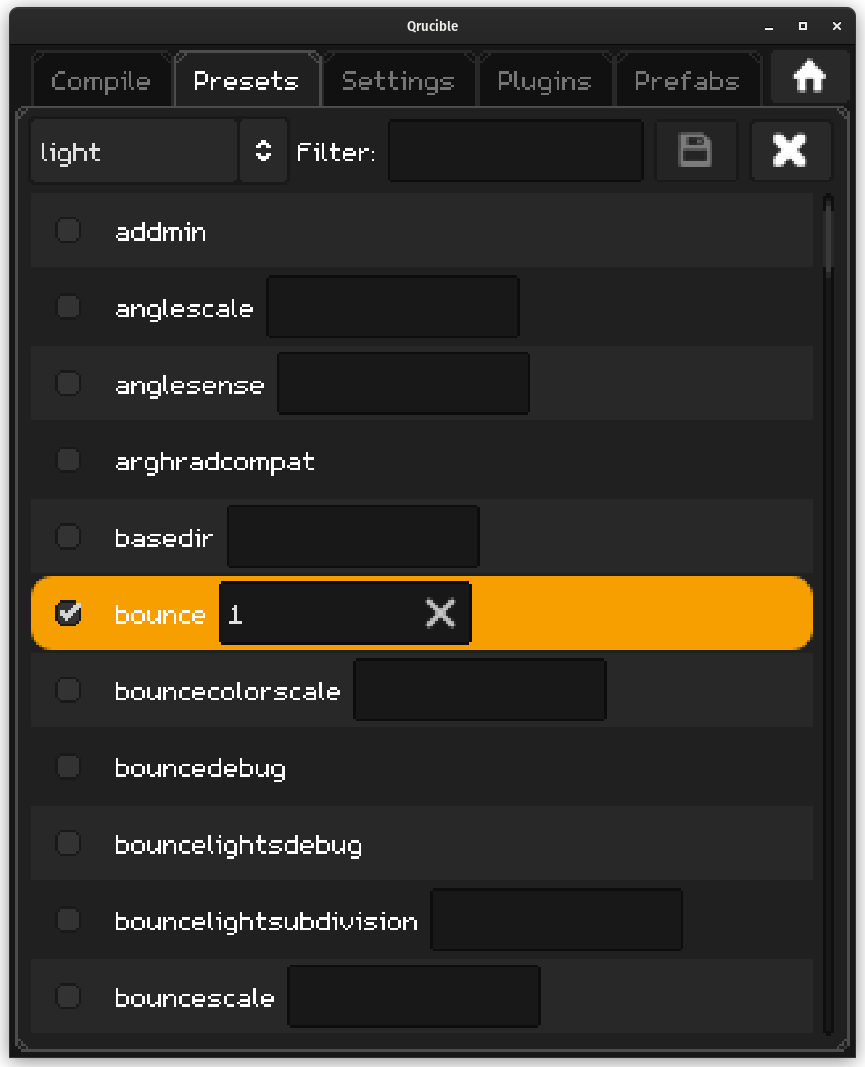
This window shows all available arguments for the chosen command. In this case it was light, but you can do this for bsp and vis as well.
Any arguments that you have chosen for this command will show in orange.
If an argument requires a value, it will have a control beside it. A text box or a drop-down, typically.
The arguments shown in this window are NOT hard coded. Qrucible runs the tools you've specified on the Settings page and collects their arguments dynamically. So if you update your tools or switch entirely to something else, this list will always be current and accurate.
Toolbar

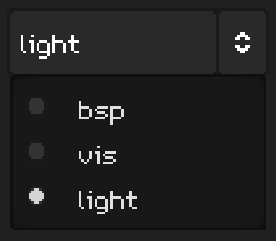
The left control allows you to choose the tool you are working with. This defaults to the tool the command on the previous screen was using but you are free to change it.
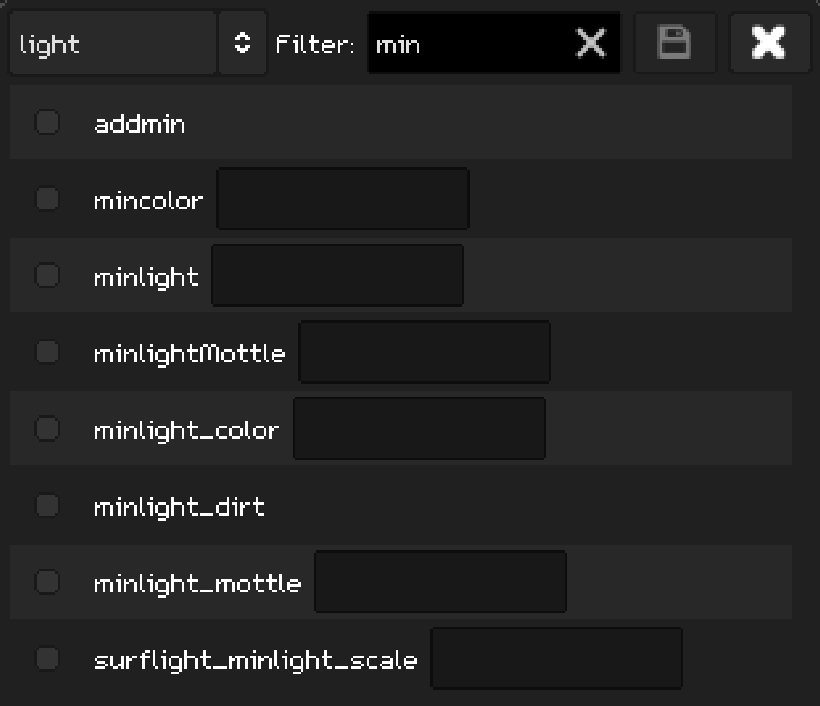
Filter is a text filter that lets you only see the things you're interested in.
The Save button commits changes and sends you back to the prior screen. You'll see that your command has updated to reflect what you chose in the search window.
The Close button closes the search window without changing anything.
Run Presets
This section behaves identically to the Compile Presets, except now we are dealing with presets that control how Qrucible will run your map. What this amounts to is you being able to customize what gets sent in the command line when running Quake.
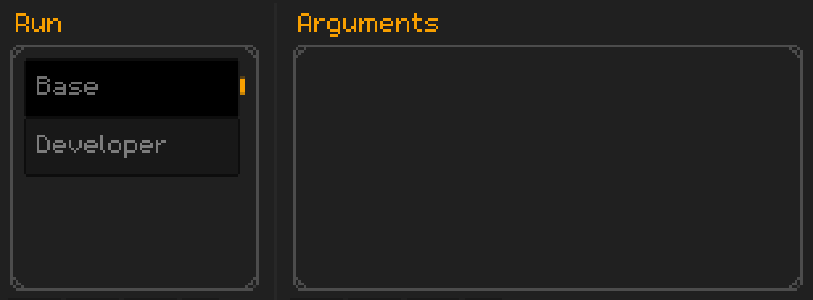
In the Base preset, there's nothing listed which means you don't want to do anything special!
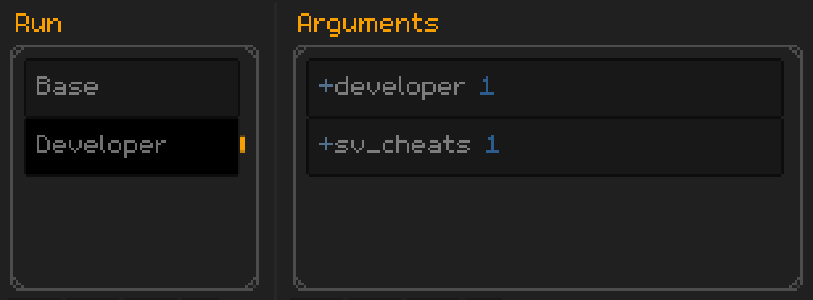
The Developer preset is a little fancier with 2 arguments being added. These will be appended to the command line when the game is run so you can do things like turn on cheats, enable developer mode, and whatever else you like.
Editing Arguments
When entering an argument, there is some basic syntax highlighting but it's really up to you what you want to put in here.
In the example above, when the game is run it will have "+developer 1 +sv_cheats 1" added to it's command line.