Compile Tab
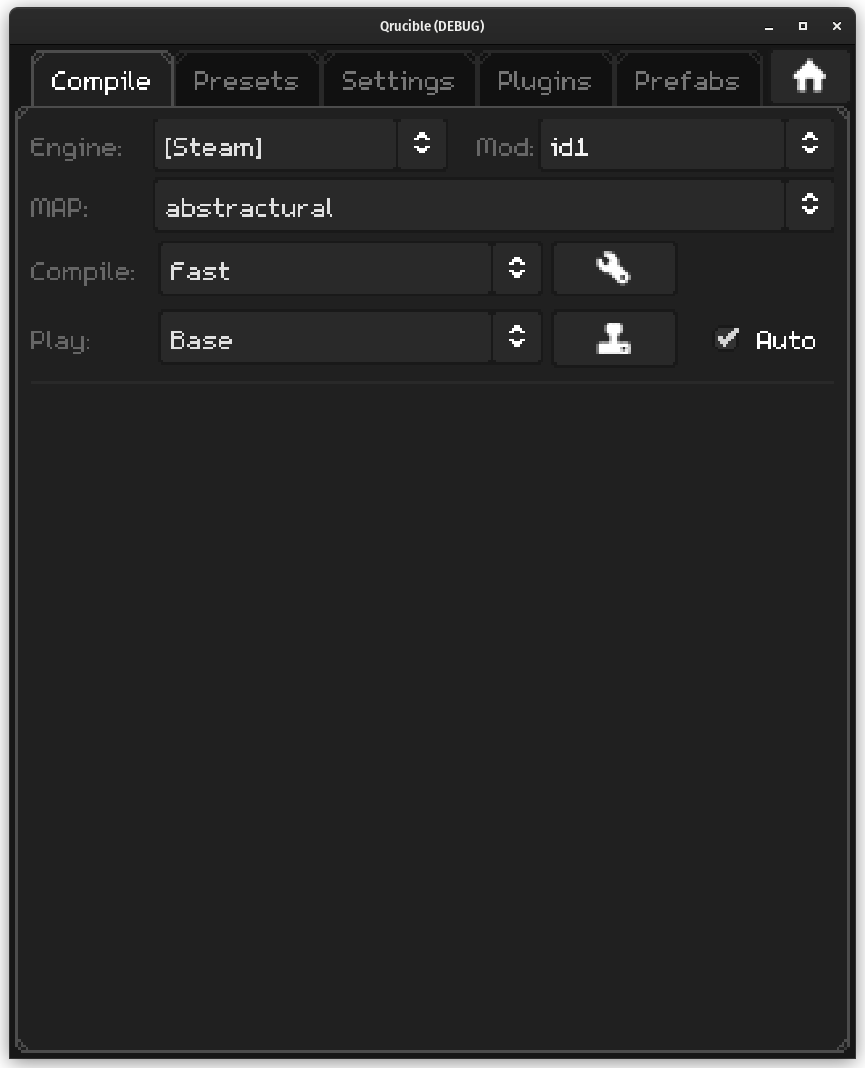
Overview
Once your settings are configured correctly, this tab is where you will go to compile your maps and get them running inside the game. Let's walk through the various controls and see what they do.
Engine
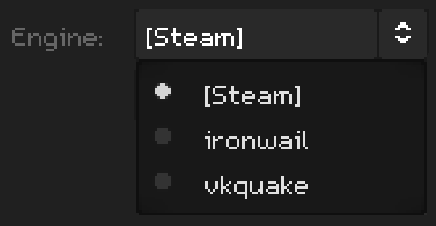
This is where you choose how you want to launch Quake when the time comes to play your map.
It is automatically populated because you specified where your Game folder was on the Settings tab. Qrucible looks in that folder and fills in this control with any files that seem like they might launch the game. On Windows, this can EXE or BAT files. On Linux, this is any file that is executable or any shell scripts.
The one special case is the [Steam] entry you see at the top. If Qrucible detects that you have Steam installed on your computer, it will add that option. By selecting that it means you want to launch Quake through Steam. This is great for Linux users who want to use Proton, for example. Windows users can either use that or select a different engine that you want to use.
Mod
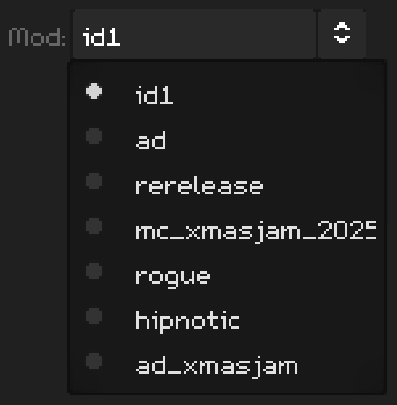
Qrucible populates this list by looking inside of your Game folder and lists any sub-folders that it finds inside of there. This is how you can map for a specific mod. If you wanted to map for Arcane Dimensions, for example, you would change the mod selection to ad. Then Qrucible knows that you want to copy your finished maps inside of there rather than into id1.
Map
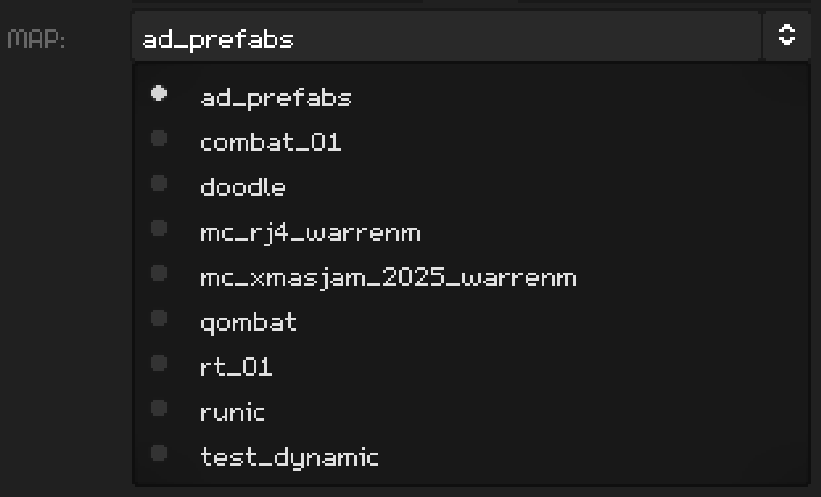
This is populated based on where you said your MAPs folder was in the Settings tab. It will list any file it finds in there with a .map file extension.
This is a fairly important thing to note because Qrucible targets your currently selected map when doing anything. From compiling, to running, to executing a plugin - they all look at the MAP selected here to know what to work on and with.
Compile
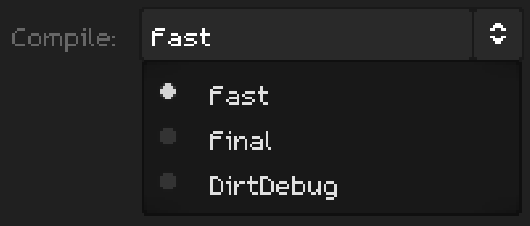
In order to compile your map, Qrucible needs a set of commands. These are grouped into what are called Presets and you can read all about those on the Presets tab.
This is populated based on what you have set up on the Presets tab. Choose which one you want to use and you're done.
Play
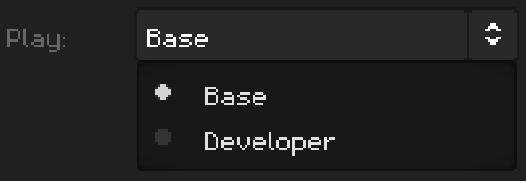
In order to run your map after successful compilation, Qrucible needs to know how you want to do that. These are presets defined much like the Compile presets above on the Presets tab. You'll find a full explanation there.
Buttons
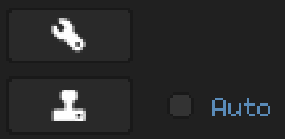
The top button here is the Build button. Clicking it will run the preset that you've selected in the Compile dropdown.
The bottom button is the Run button. Clicking it will run the Engine that you've selected above and play the MAP you are currently working with in it.
The Auto checkbox is a handy shortcut telling Qrucible to automatically run the map after compiling it.
Hot Keys
These buttons have shortcut keys attached to them and these will work from any tab.
- CTRL+B - Build the map
- CTRL+R - Run the map
Pressing these from anywhere in the interface will put you on this tab and do the action requested.
Output Window
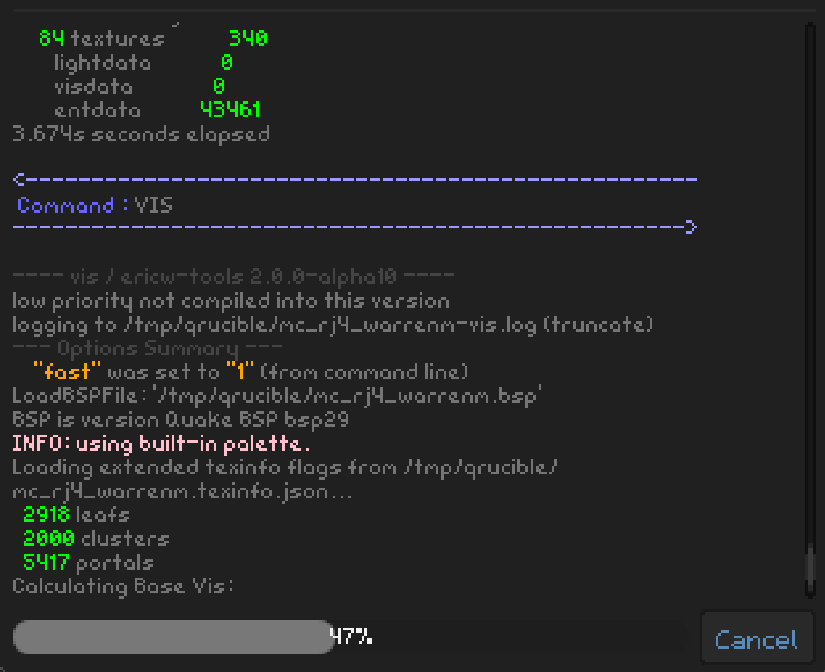
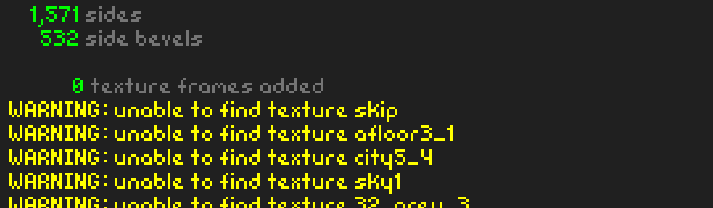
Whenever you build a map, the bottom of this tab will come alive with movement. Qrucible is running your compile tools and showing the output to you.
It color codes as best it can to make it a little easier to parse. Generally you won't have to really read this but if you get an error or a warning, it's handy to have access to.
Each tool will utilise the progress bar to show you how far along it is in it's work.
If something is taking too long or you realise you hit Build by mistake, click the Cancel button and the build process will be stopped.
Error Checking
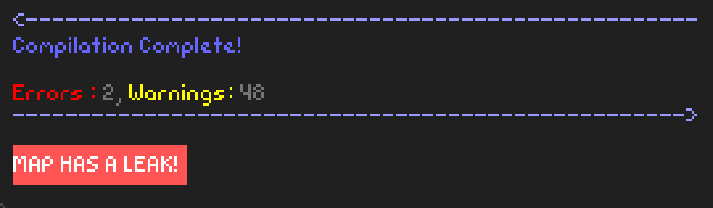
When the build is done, you'll see something like the above. This is how you can know if you need to check errors or warnings.
There's also a special banner that appears if the map leaked during compilation since that's the most common thing that mappers are interested in. If you see that banner, you've got a leak.